
Overview
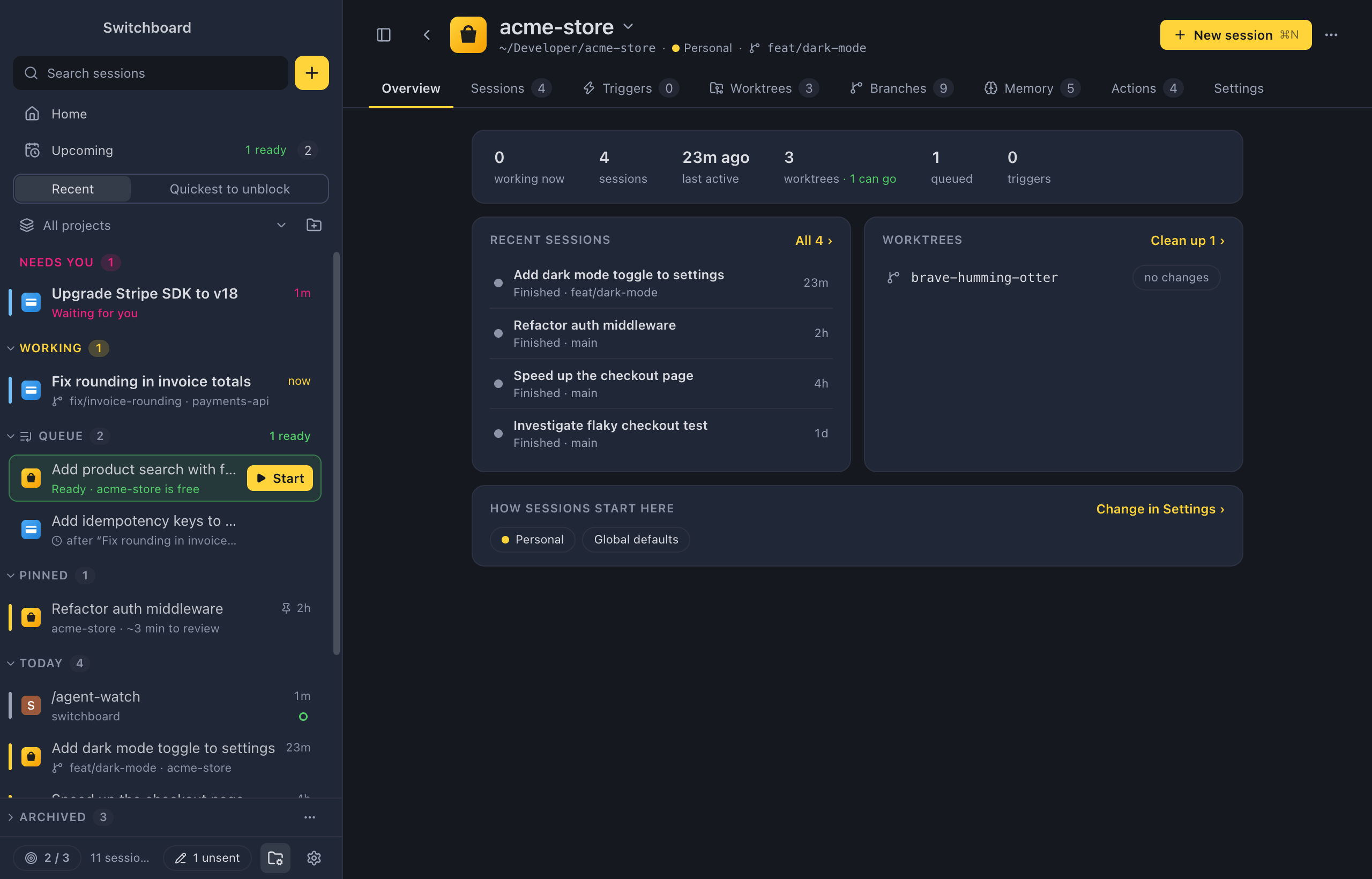
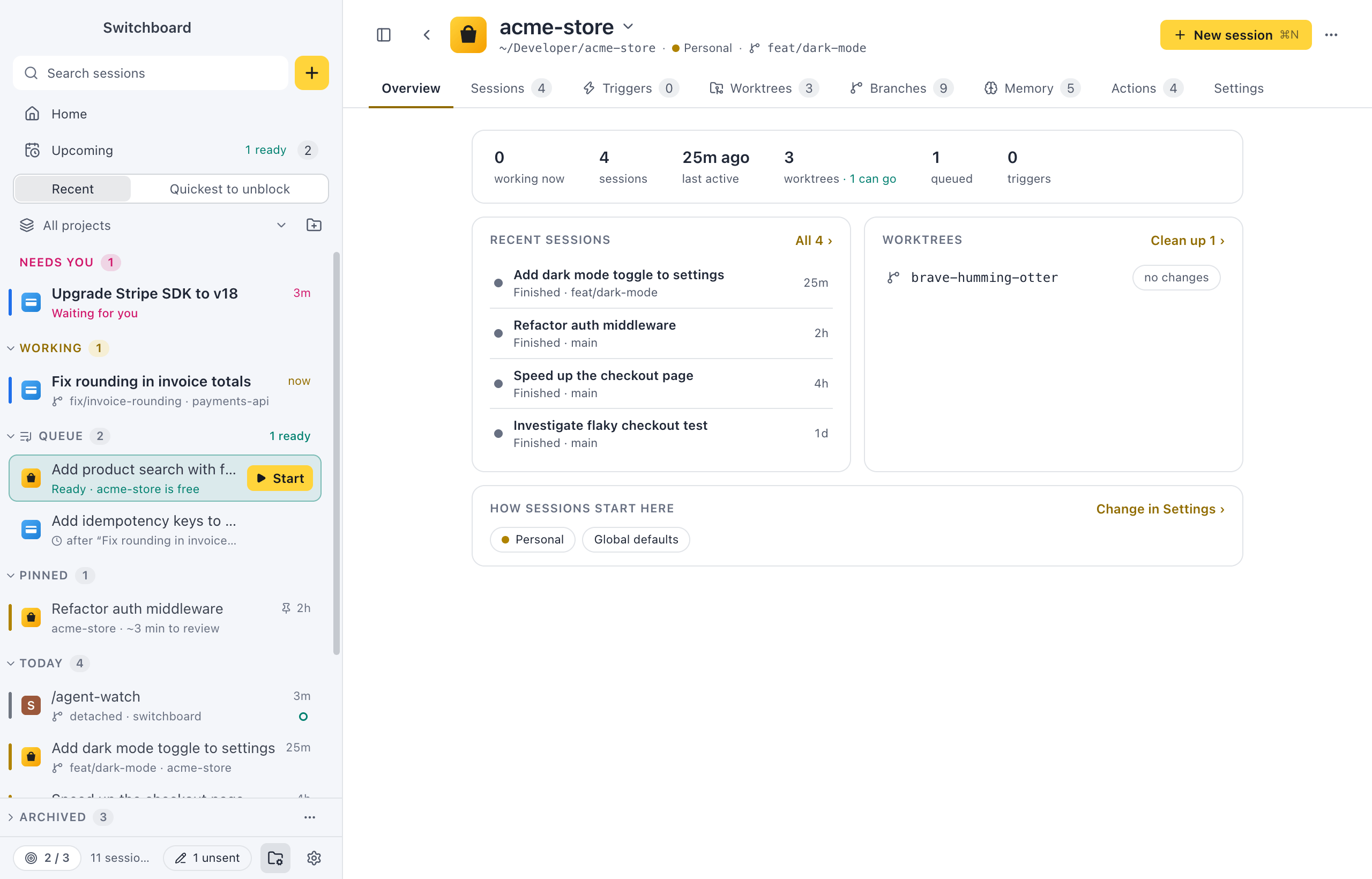
Open the Overview tab to see how a project is doing at a glance: what is working, what was done lately, which worktrees can go, and how new sessions start. It is the first tab of a project’s page.
Open it
Section titled “Open it”Click a project in the Projects view, choose Open project in a project’s menu in the sidebar, or run Project: <name> in the command palette (Command, KControl, K). A project opens on the tab you left it on, Overview the first time. Click Overview in the tab row, or press Command, 1Control, 1, to come back to it.
How to use it
Section titled “How to use it”At the top, a row of numbers: working now (in yellow when there are some), sessions, last active, worktrees (with how many can go, in green), queued and triggers. Click a number, other than last active, to open its tab.
Under it:
- Recent sessions: the four newest, each with its state (Needs you, Working, Finished and so on), its branch and its age. Click one to open it. All 205 › opens the Sessions tab.
- Worktrees: the worktrees in use first, then the ones that can go, each with a badge: in use, merged or no changes. Click one to open the Worktrees tab. Clean up 2 › removes the ones that can go, after the confirmation.
- How sessions start here: the profile and the defaults new sessions start with, such as Opus · high effort · worktree, or Profile defaults or Global defaults when the project sets none. Change in Settings › opens the Settings tab.
Outside a git repository, the Worktrees panel says Not a git repository. While Switchboard reads the repository, it says Reading….
Settings
Section titled “Settings”Nothing changes the Overview itself. A project’s defaults for new sessions are on its Settings tab.
Related
Section titled “Related”- WorktreesSee every worktree of a project, which ones can go, and remove several at once after one confirmation.
- BranchesSee every branch of a project, here and on the remote, switch between them, and delete the ones you no longer need.
- What loads in a sessionSee every file Claude Code reads at the start of a session in a project, in order and by size.
- QueueKeep prompts to start later, in the order you want them, and see when each one is ready.