
Project settings
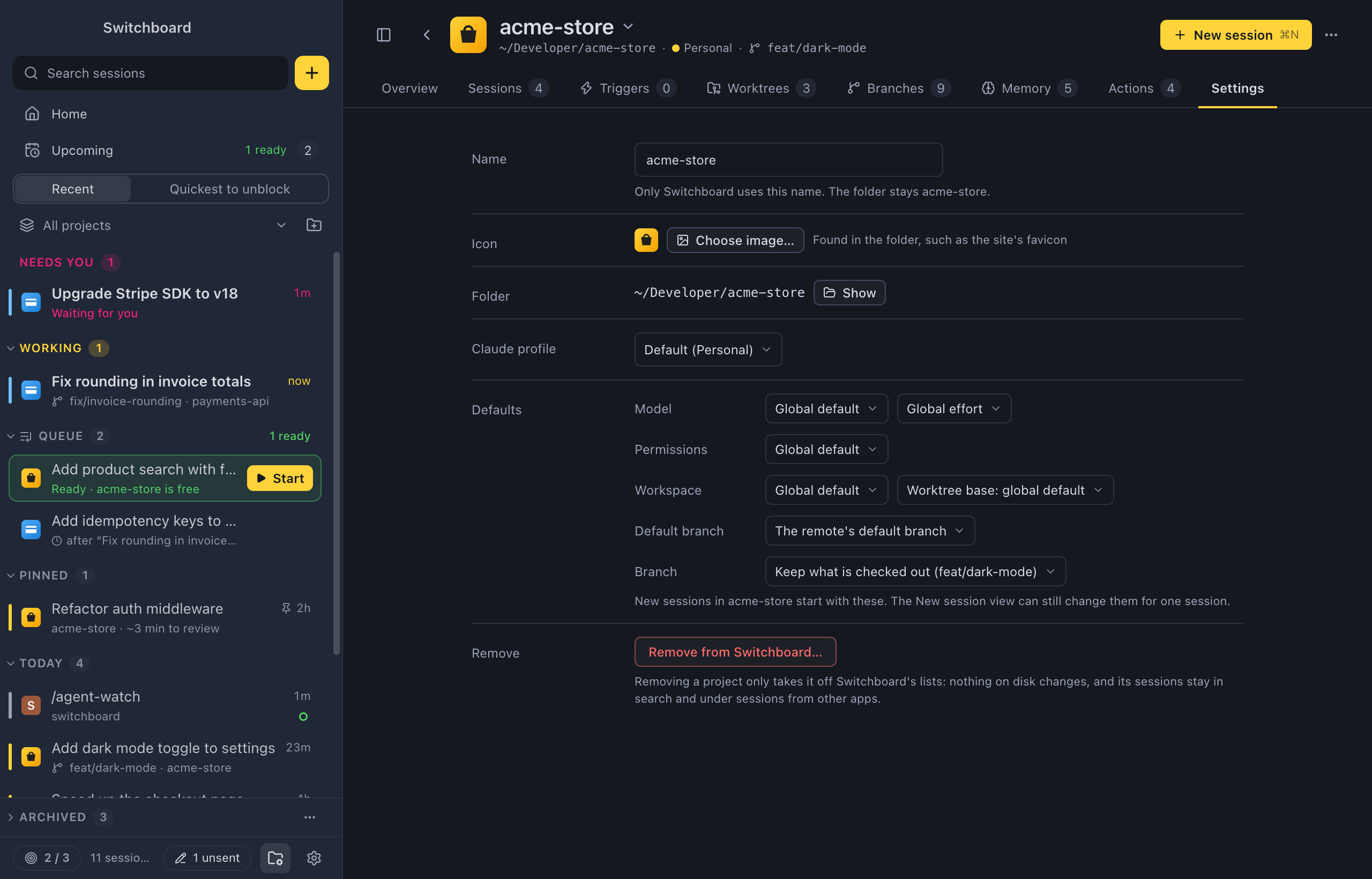
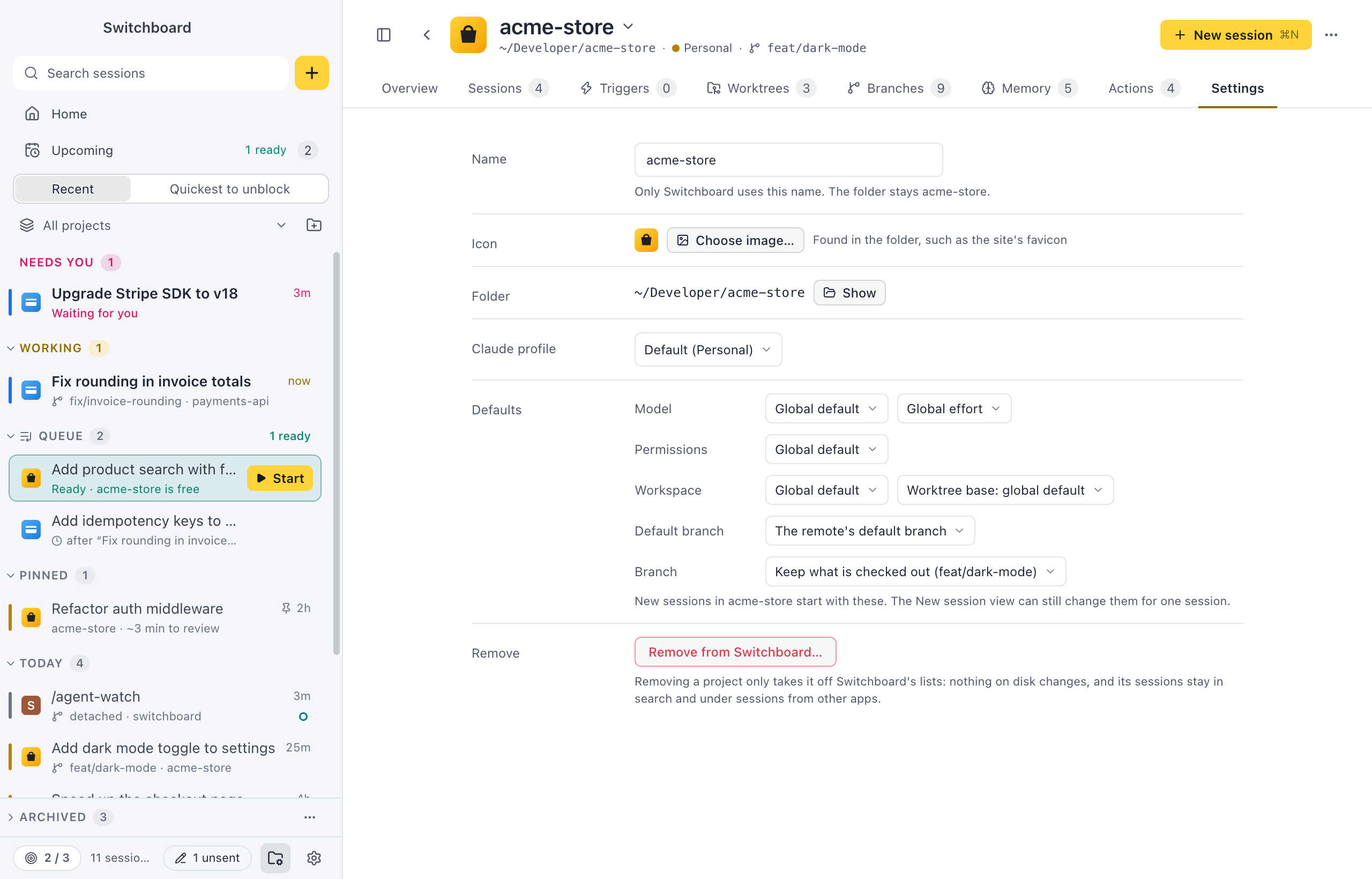
Set a project’s defaults once, and every new session in it starts the way you want, such as on your work account in a new worktree. The Settings tab of a project’s page holds what new sessions in the project start with: the Claude profile, model, effort, permission mode, workspace and branch. It also holds the project’s name, icon and folder in Switchboard, and Remove.
Open it
Section titled “Open it”- Click Settings on a project’s page.
- Choose Project settings… in a project’s menu in the sidebar or the Projects view, or click the gear on its row in the list.
- After adding a project, Switchboard opens it on this tab.
How to use it
Section titled “How to use it”Every change saves at once. The New session view starts from these choices; you can still change them there for one session, or click Save as project default there to save them here.
Claude profile
Section titled “Claude profile”With more than one Claude profile, Claude profile picks the account new sessions in this project use. Default follows the default profile. You can also link a profile from the project’s menu in the sidebar, under Claude profile.
Defaults for new sessions
Section titled “Defaults for new sessions”| Row | Choices |
|---|---|
| Model | A model, Auto (Haiku picks from the first prompt, see Auto model), or Global default. Next to it, an effort level, or Global effort. Queued prompts on Auto are routed when they start, not when you add them. |
| Permissions | A permission mode, or Global default. |
| Workspace | Current folder, New worktree, or Global default. Outside git, a new worktree can’t be chosen. |
| Worktree base | What a new worktree branches from: Worktree from origin, Worktree from HEAD, Worktree from <branch> for any local or remote branch, or the global default. Shown unless the workspace is the current folder. With a branch here, pull requests go into that branch, and queued items, scheduled sessions and triggers in the project start from it too. |
| Default branch | The branch the project develops on, when it isn’t the one GitHub calls the default (dev instead of main). New worktrees from origin start from it, pull requests go into it, and Changes compares against it. The remote’s default branch follows GitHub. Only in a git repository. |
| Branch | For the current folder: Keep what is checked out, or Check out <branch> first. Only in a git repository, and not for a new worktree. |
A field you leave unset uses the defaults of the project’s Claude profile, and else Claude Code’s own defaults, and for Permissions the mode set in Settings → General. When the profile sets that field, the choice says so, for example Profile default (Opus) instead of Global default. See Models and options and Worktrees.
The project’s Overview shows a summary of these defaults under How sessions start here (“Opus · high effort · worktree”), or, when none are set, Profile defaults or Global defaults, depending on whether the project’s profile has any.
Name, icon and folder
Section titled “Name, icon and folder”- Name: the project’s name in Switchboard, edited in place. ReturnEnter or leaving the field saves it, Escape puts it back, and an empty field uses the folder’s name. The folder on disk keeps its name.
- Icon: Choose image… picks an image file. Detect automatically goes back to the icon found in the repository; it shows after you picked your own.
- Folder: where the project is, with Show to open it in your file manager.
For an emoji or a letter, use Project icon in the project’s menu. See Change the icon.
Remove
Section titled “Remove”Remove from Switchboard… takes the project off Switchboard’s lists, after you confirm.
Settings
Section titled “Settings”App-wide settings that affect projects are in Settings → Projects (Project order and Clone from GitHub) and Settings → Claude profiles. See Settings and Claude profiles.
Related
Section titled “Related”- Claude profilesUse more than one Claude account in Switchboard, such as a personal plan and a work one.
- Model, effort and modeThe chips under the message box that set the profile, model, effort and permission mode of a session.
- Auto modelLet Haiku read the first prompt of a new session and pick Haiku, Sonnet or Opus for it. Picked once, shown in the session, easy to undo.
- WorktreesStart a session in an isolated copy of the repository on a branch of its own, like claude --worktree.