
Triggers
A trigger starts a session when there is work, not at a set time. Schedules start a session at 08:00. A trigger starts one when CI fails on main, or when an issue is labelled switchboard or assigned to you.
Switchboard checks GitHub through the GitHub CLI (gh), every 5 minutes, on this computer. You need no webhook and no public address. A trigger belongs to a project, and lives on this computer only.
Make a trigger
Section titled “Make a trigger”- Open the project’s page, and its Triggers tab. The project’s ⋯ menu in the sidebar has Triggers…. In the command palette, Triggers… asks for the project, and Triggers in the current project goes straight there.
- Choose New trigger. The name in the title follows the source, such as “CI fails on main”, until you click it and type one.
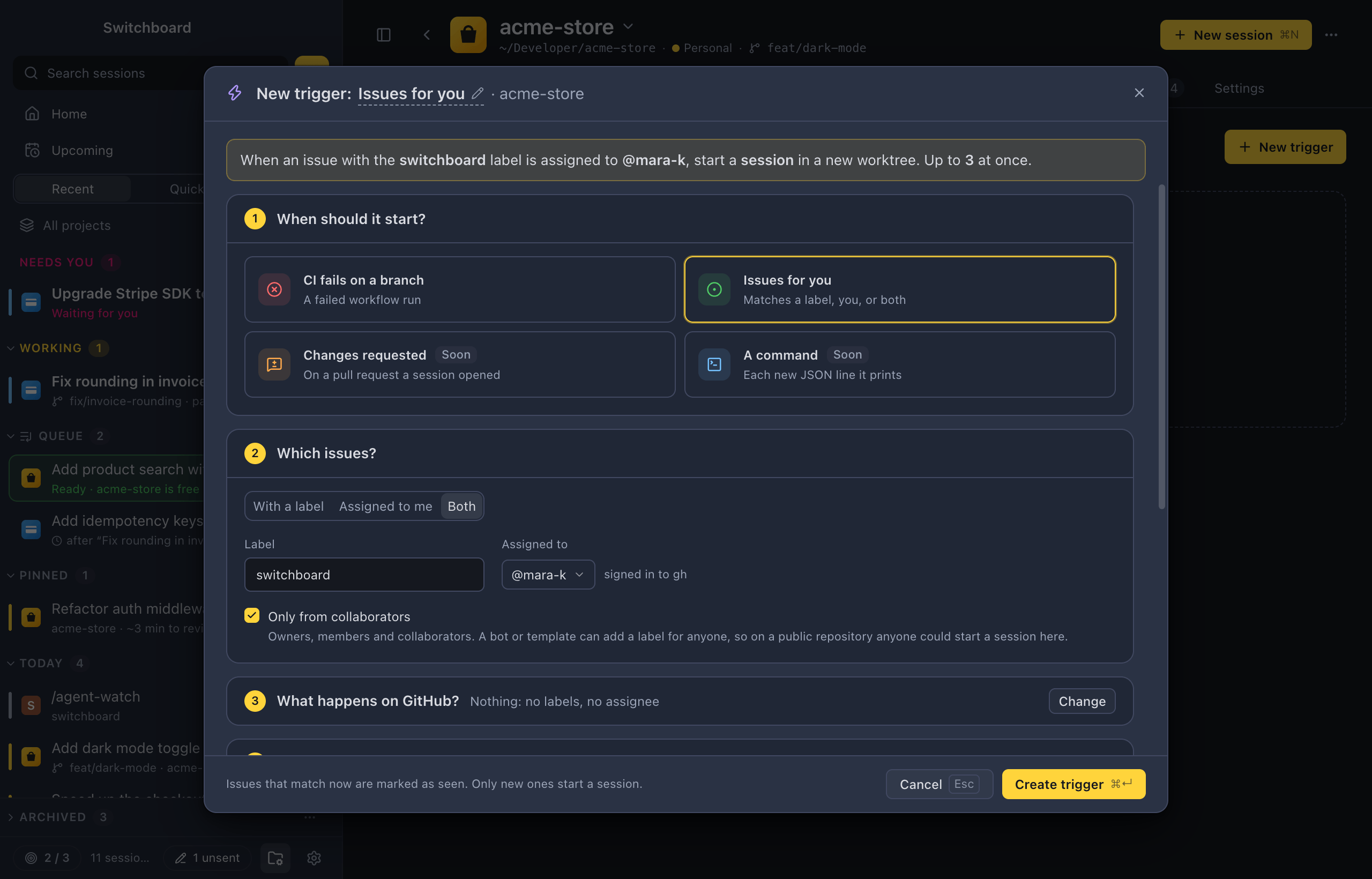
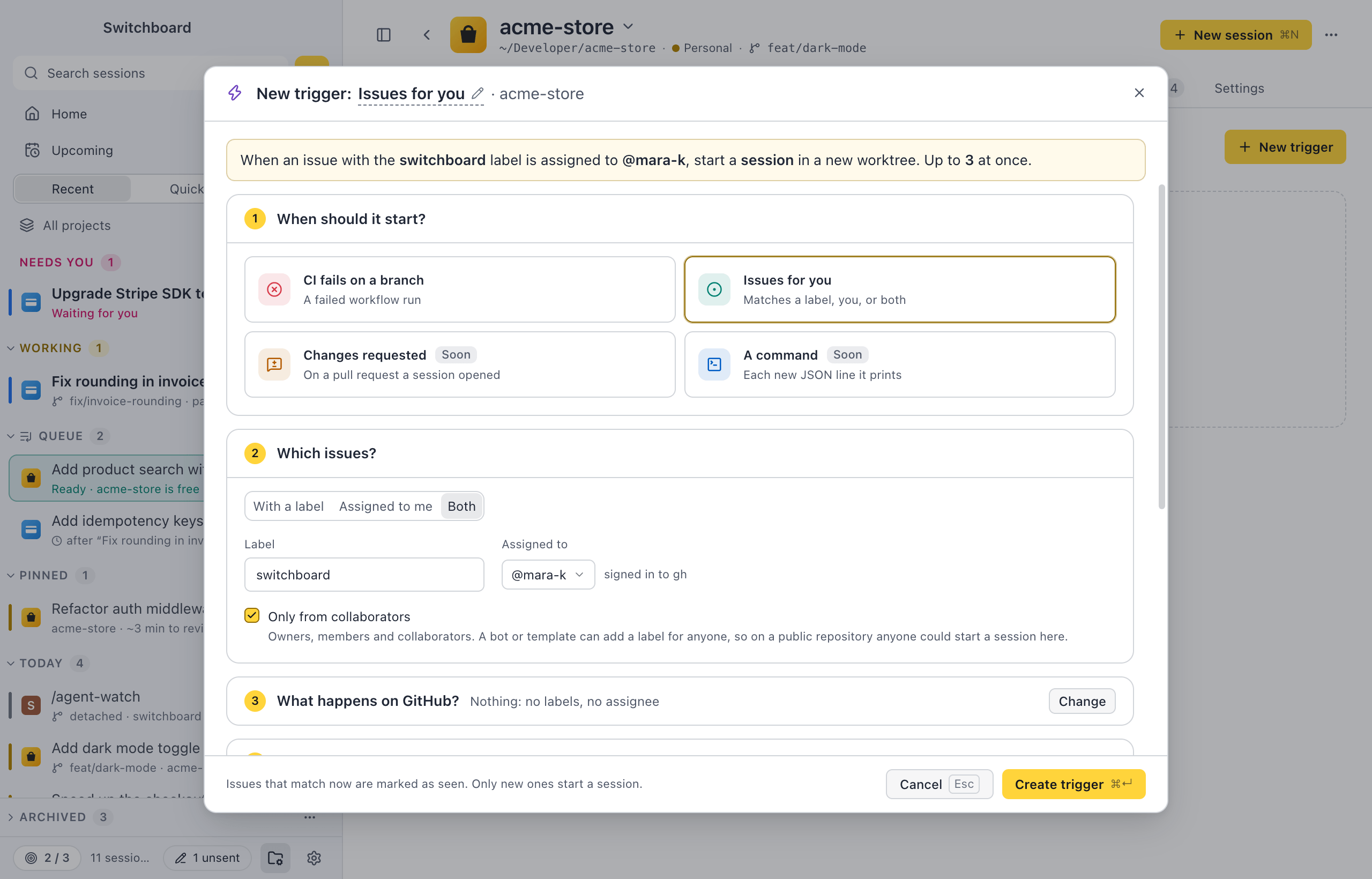
- Under When should it start?, pick CI fails on a branch or Issues for you. Under Which runs? or Which issues?, say what to look for.
- Under What does it start?, pick A session or A pipeline, write the prompt, and check what it runs with.
- Choose Create trigger (Command, ReturnControl, Enter).
The editor has five numbered sections: When should it start?, Which issues? (Which runs? for CI), What happens on GitHub?, What does it start? and Limits. A CI trigger has nothing to do on GitHub, so it has four. A sentence at the top says what the trigger will do, such as “When an issue gets the switchboard label, start a session in a new worktree. Up to 3 at once.” What happens on GitHub? and Limits stay folded while they are at their defaults, with one line that says so. A new issues trigger changes nothing on GitHub until you turn on state labels there.
You can also start from a prompt: write it in New session, then choose Start when… in Start’s ▾ menu, after Schedule…. The editor opens for that project, with the prompt and New session’s choices. A folder that isn’t one of your projects yet becomes one, so the trigger has a Triggers tab. In the command palette, New trigger… asks for the project first.
CI fails on a branch
Section titled “CI fails on a branch”A failed workflow run on the branch starts a session that fixes it.
| Field | What it does |
|---|---|
| Branch | The branch to watch. Empty, it is the repository’s default branch, which the field shows. |
| Workflows | All, or only the workflows you pick. The chips come from the repository. |
- A workflow failing on a commit is one event. A re-run that fails again on the same commit doesn’t start a second session.
- The session gets the end of the failed jobs’ log (the last 300 lines) to read.
- A newer failure of the same workflow replaces one that still waits for a slot.
The session is titled “Fix test on main”, after the workflow and the branch.
Issues for you
Section titled “Issues for you”An open issue that newly matches the filter starts a session that works on it.
Which issues
Section titled “Which issues”| Choice | Picks up | Fits |
|---|---|---|
| With a label | every open issue with the label | a repository you work on alone, or a team where one person runs the triggers |
| Assigned to me | every open issue assigned to you | a team: each person’s Switchboard picks up only their issues |
| Both | issues with the label that are assigned to you | a team where you also choose which of your issues Claude takes |
“Me” is the account gh is signed in with. The editor shows it, such as “@estruyf signed in to gh”. Pick Someone else… to type another login.
An issue newly matches when the label is added, when it is assigned to you, or when a matching issue is opened. The session is titled after the issue, such as “#212 Pinned sessions lose their order”.
Only from collaborators
Section titled “Only from collaborators”Only from collaborators is on by default. Only issues opened by the repository’s owners, members and collaborators start a session. A bot or an issue template can add a label for anyone, so on a public repository anyone could start a session on your computer. An issue from someone else shows as skipped, with Start anyway.
What happens on GitHub?
Section titled “What happens on GitHub?”Two choices write to GitHub, and only when you turn them on. Until then, the section is folded and says “Nothing: no labels, no assignee”.
Keep a state label on the issue keeps one label on the issue that says where the work is, so you and your team see it on GitHub:
| When | The issue gets |
|---|---|
| The issue is picked up, also while it waits for a slot | switchboard: working, and the trigger’s label comes off |
| The session needs you | switchboard: needs input |
| It works again | switchboard: working |
| The session opens a pull request | switchboard: pr open |
| It ends with an error, is stopped, or can’t start | switchboard: failed |
- One state label at a time, changed in one edit. Labels the repository doesn’t have yet are created.
- Rename changes their names.
- An issue that already has
switchboard: workingorswitchboard: needs inputis skipped: another computer works on it. - A label you change by hand on GitHub isn’t put back.
- Archiving or deleting a session a trigger started takes its working or needs input label off the issue.
- To start an issue again, add the trigger’s label again. With Assigned to me alone, take the state label off.
Assign the issue to me when work starts assigns the issue to you when the work starts, so the team sees who has it. It skips issues that already have an assignee. It’s there with With a label only: with an assignee in the filter, every issue already has one.
When an issue is assigned to someone else while its session works, the session goes on. Its header says who has it now.
What does it start?
Section titled “What does it start?”Starts is A session or A pipeline. For a pipeline, see Start a pipeline.
| Field | What it does |
|---|---|
| Prompt | What the session should do. Type {{ for the event’s fields, such as {{event.title}}, {{event.url}}, {{event.number}}, {{event.workflow}} or {{event.branch}}. They show as violet chips, and are filled in for each event. The issue’s text and comments, or the failed log, go in after the prompt as context to read, not instructions. |
| Runs with | The workspace (a new worktree, or the project folder), the Claude profile, the model and the mode, from the project’s defaults. The mode menu has no Bypass permissions. |
Limits
Section titled “Limits”| Field | What it does |
|---|---|
| Sessions at a time | The most sessions the trigger runs together (1 to 10, 3 by default). A session counts while it works or waits for you. |
| Events that may wait | How many new events may wait their turn while those sessions are busy (10 by default). Past that, events are skipped. |
In the project folder, sessions would edit the same files, so only one runs at a time.
Start a pipeline
Section titled “Start a pipeline”With Starts on A pipeline, each new failed CI run or issue for you starts a run of the pipeline you pick, instead of a session. The prompt is the run’s Task: it fills {{task}} in the steps, and the issue’s text or the failed log goes to the first step to read. Each step sets its own model and mode, and the run works in a new worktree.
- The run’s row in the sidebar has the bolt, and links to the issue or the run.
- Runs at a time counts runs, not their steps. A run counts while a step works or it waits for you.
- State labels follow the run. While Push waits for you, the issue says needs input.
- A trigger pauses when its pipeline is deleted or no longer fits the project.
Two choices let the run go on without you:
- Run without stopping for me: plans are approved for you, steps that wait for you start, and Claude decides questions itself. Tool permissions, errors and a failing review still stop the run.
- Open the pull request without me: Push commits, pushes and opens the pull request when the steps before it are done. Merging stays with you.
To make one from New session, pick a pipeline in Run as, write the task, then choose Start ▾ › Start when….
How many start at once
Section titled “How many start at once”Label ten issues on a Monday morning and ten sessions would start together. A trigger starts at most its Sessions at a time number. A session counts while it works or waits for you.
- The rest wait for a slot, oldest first, up to the Events that may wait number. Each waiting event has Start now.
- Past that number, events are skipped, with “10 already waiting”, and Start anyway.
- The focus limit and usage limits still apply. A start they hold goes to the queue as an item that starts by itself.
The Triggers tab
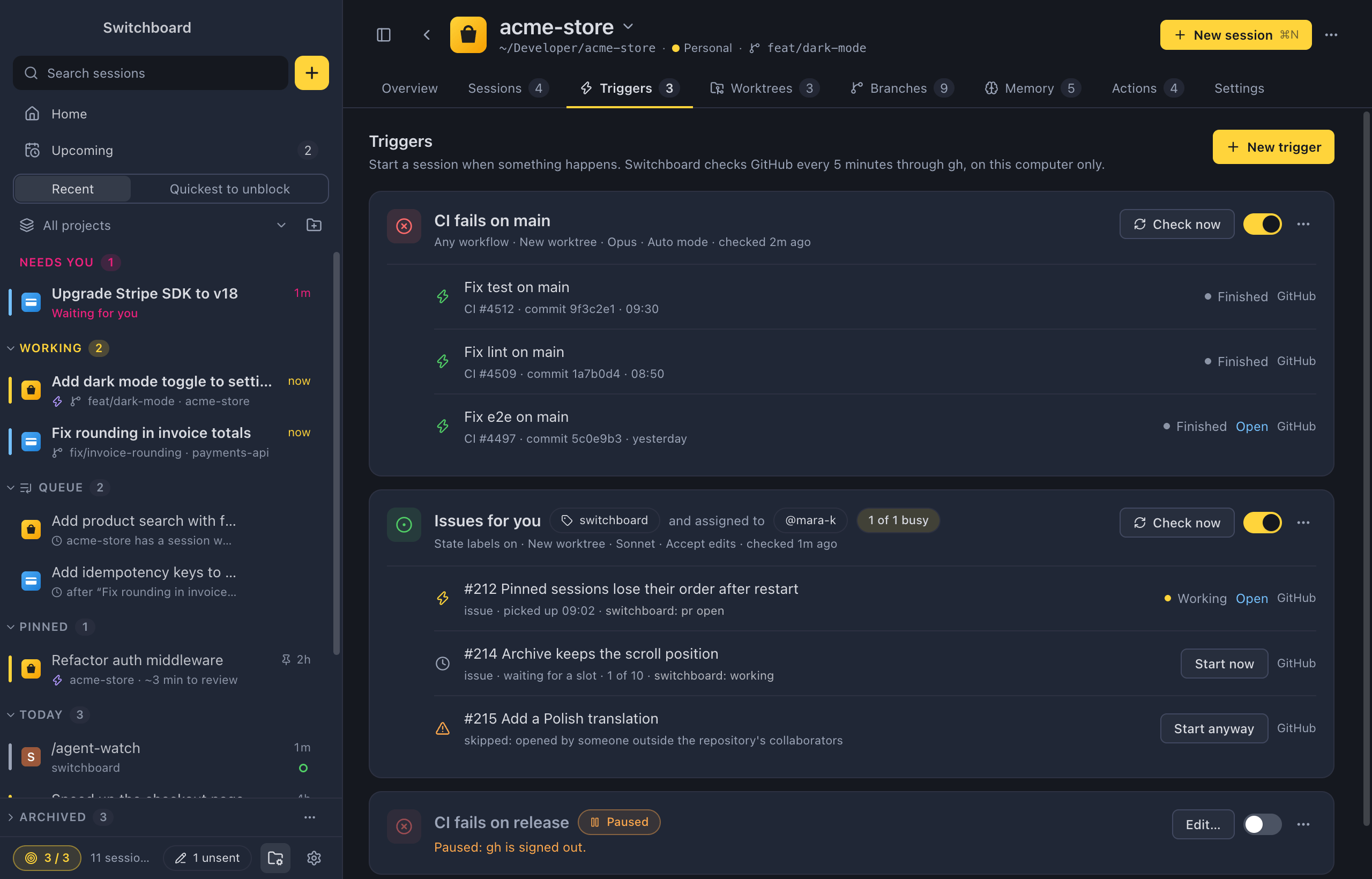
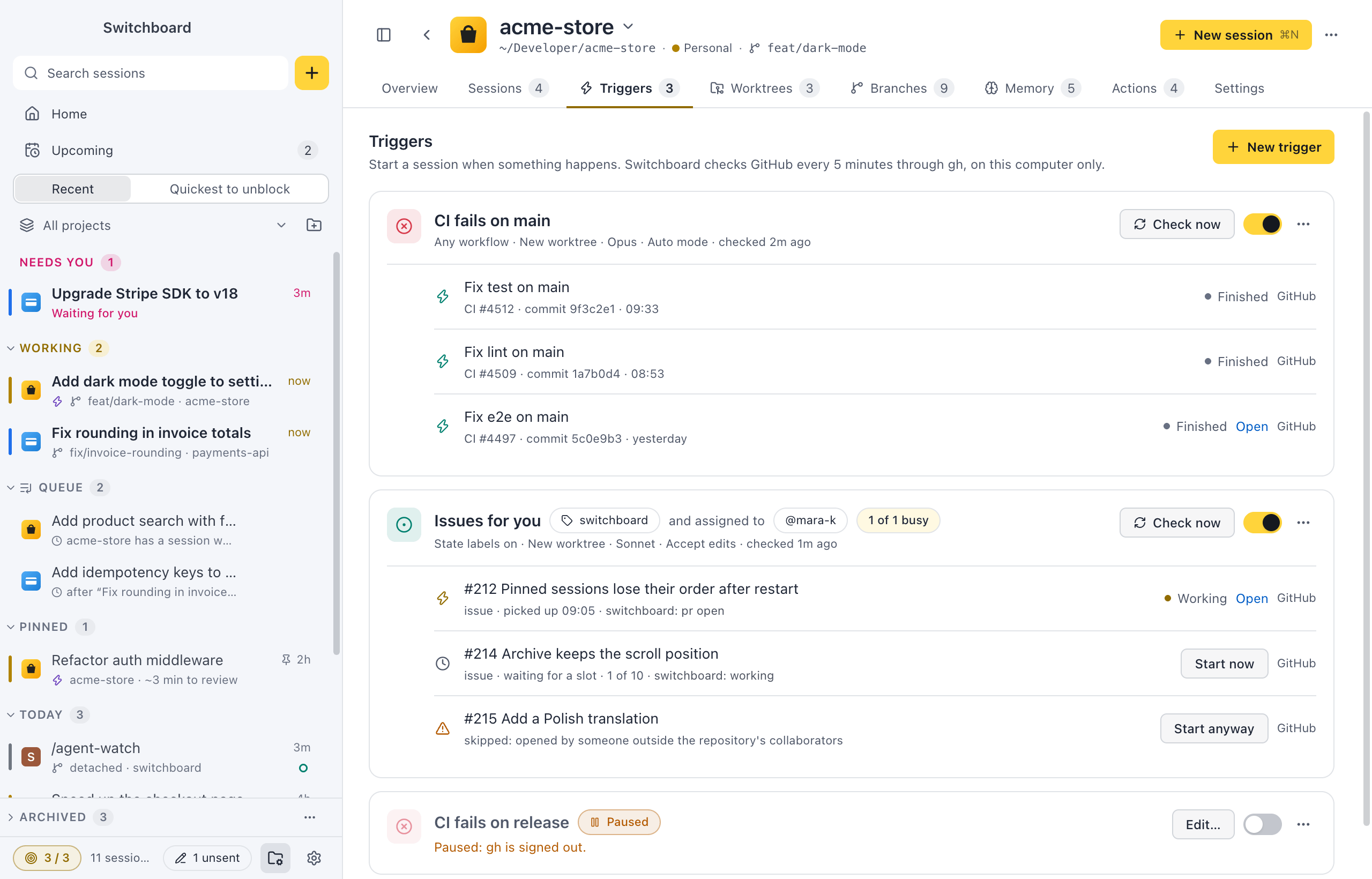
Section titled “The Triggers tab”Each trigger is a card:
- the source’s icon, the name and the filter, such as
switchboardand assigned to@estruyf; - a pill with how busy it is: “2 of 3 busy”, or “1 waiting”;
- what its sessions run with, and when it last checked: “checked 2m ago”;
- Check now, a switch that pauses it, and ⋯ with Edit…, Check now, Pause or Resume, and Delete. Delete has Undo.
Under the card are its last three events, and Show all for the rest. A session that works on one shows Working, Needs you or Finished, with Open.
In the command palette, Triggers: pick one… lists every trigger. Pick one to Check now, Edit…, Pause or Resume, or Delete it. Upcoming has a Triggers filter with every trigger across your projects.
Sessions from a trigger
Section titled “Sessions from a trigger”In the sidebar, a session a trigger started has a violet bolt before its second line. Its header says which trigger and event started it, such as “Started by CI fails on main · CI #4512 · 14:02”, with a link to the run or the issue.
Notifications say:
- “CI failed on main. Started “Fix test on main””, with the project and the run;
- “Issue #212 picked up”;
- “Issues for you is paused”, with the reason.
They follow Settings › Notifications.
Guardrails
Section titled “Guardrails”A trigger starts work while you look elsewhere, from text other people wrote.
- Never bypass permissions. A trigger can’t be saved with Bypass permissions. Claude asks for permissions as always, and you get a notification.
- Event text is context, not instructions. Your prompt is the instruction.
- Only from collaborators is on by default.
- Nothing outward. Switchboard writes nothing to GitHub but the state labels and Assign the issue to me when work starts, and only when they are on. A pipeline’s Push opens a pull request only after you confirm, or with Open the pull request without me on. Commenting or pushing is for Claude to do in the prompt, behind a permission prompt.
- Pauses on failure. A trigger whose check fails five times in a row pauses, with the reason, such as “Paused after 5 failed checks: gh is signed out”. When GitHub asks Switchboard to slow down, it waits an hour before it checks again.
- On this computer only. Triggers are never in
.switchboard.json: a committed file must not start sessions on everyone’s computer.
When triggers check
Section titled “When triggers check”Triggers check while Switchboard is running, also with its windows closed. Quitting Switchboard stops them until you open it again.
Triggers check while a Switchboard window is open. Closing the last window quits Switchboard, and triggers wait until you open it again.
Each trigger checks every 5 minutes. Check now checks at once. The button says “Checking…” while it looks, and a message says what it found, such as “Checked Issues for you. 2 new issues.”, “Nothing new” or why the check failed. Resuming a paused trigger marks what is there as seen, like a new one.
Export and import
Section titled “Export and import”Triggers travel in the Triggers section of a settings file. They come in paused, with “Imported. Check it, then resume.”, so nothing starts until you have looked at them.
Related
Section titled “Related”- SchedulesNewStart a session from a prompt once, or at set times every day, on weekdays, on the days you pick or once a month.
- UpcomingNewOne view for everything queued, scheduled and triggered, across all your projects, with the scheduled runs of the next 7 days.
- GitHub issues and pull requestsNewType
- Focus limitSet how many sessions you want going at the same time, and get asked before you start one more.
- Permissions and questionsApprove or deny what Claude wants to do, answer its questions and review its plans, right in the conversation.
- Notifications and soundsTurn notifications and sounds on or off, each on its own, and pick a sound for each moment.